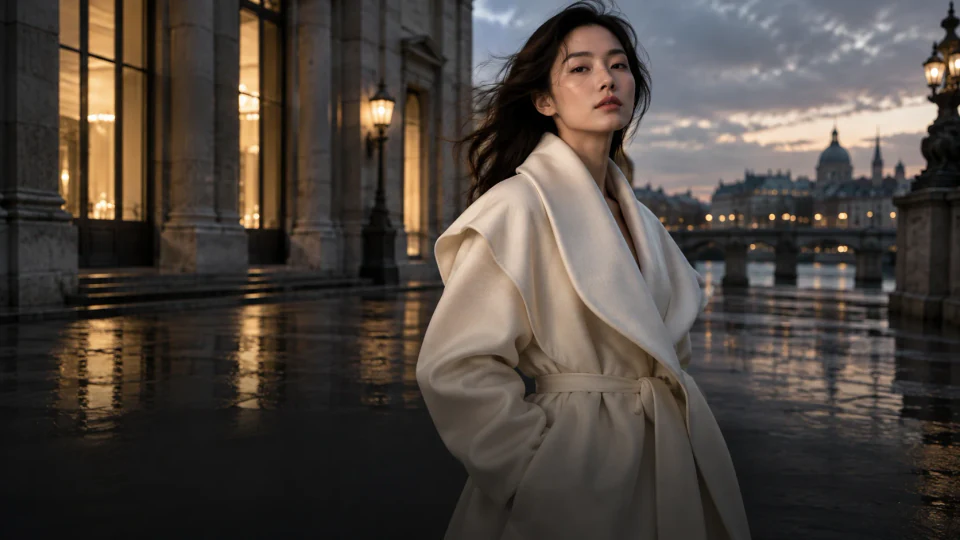
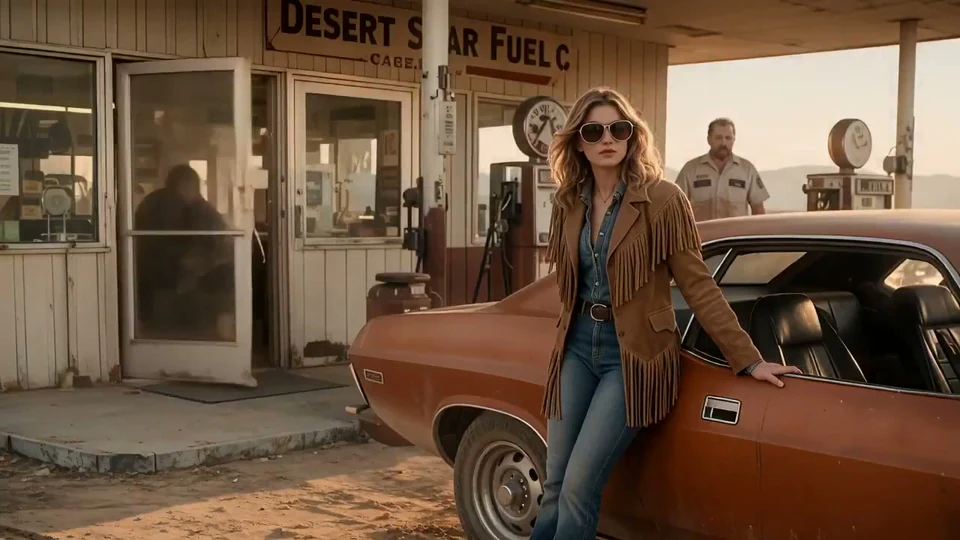
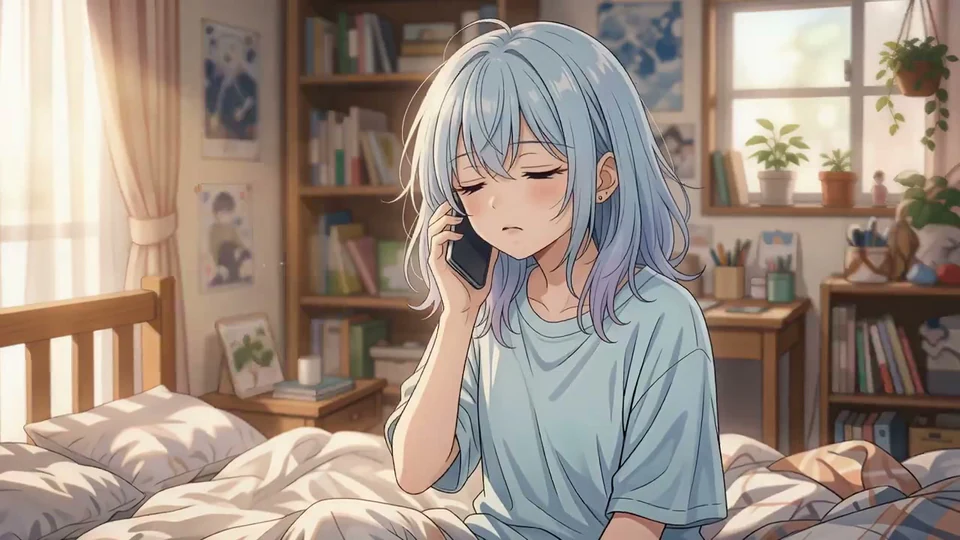
Nano Banana 2.1 is an advanced image generation and editing model from Google, designed to deliver clearer visual quality, stronger reference fidelity and more precise refinements. It generates more natural lighting and textures, preserves subjects more consistently, and follows complex visual instructions more accurately across multiple edits.
Nano Banana 2.1 is the image creation entry point at nanobanana21.org, bringing prompts, reference images, model choices and drafts into one workspace. Start with a written idea or plan a new background, lighting style or composition around an existing photo.
1
Text-to-image: describe a complete visual brief
Begin with the subject and action, then add the setting, camera angle, light and materials. A product brief might specify a glass bottle, stone surface, soft side lighting and room for a headline. Include the intended use so a cover, catalogue image and advertising concept have distinct compositions.
2
Reference editing: separate what stays from what changes
Upload a clear original and list the identity, product shape or layout to preserve. Describe the background, clothing, light or colors you want to change separately. Explain the role of each reference when using several images. Focus each revision on one change so you can judge it against the original.
3
Portraits and characters: build a reusable design brief
Record hairstyle, clothing, accessories and visual personality. Reuse the same reference and description across scenes, changing the action, framing or environment independently. Review facial details, clothing and proportions in every result; a request for consistency is a direction, not a guarantee.
How to generate images with Nano Banana 2.1
Move from a description to a refined image with a clear direction at every step.
1
Prepare a prompt or clear reference images
Decide whether the image is for a product page, cover or poster and choose the intended framing. Start from text for a new idea, or add JPG, PNG or WEBP references for editing. Follow the count and file size limits in the upload area.
2
Choose the model and specify the composition
Choose Nano Banana 2.1, the aspect ratio and 1K, 2K or 4K resolution. Organize your prompt as subject, setting, composition, light and constraints. For edits, describe what to preserve and what to change. Review the total credits and balance before generating.
3
Review, refine and retain each useful version
Open the completed image in your creation history and check subjects, edges, lettering and lighting. Download it or reuse it as a reference to change one specific detail. Keep useful prompts and settings for the next version.
Text-to-image or image editing: which workflow fits?
The main differences are the starting material and the instructions. Choose the workflow before comparing model options.
Creative requirement
Text-to-image
Image editing
Starting material
Build a subject and setting from a written description.
Start with an existing photo, illustration or product image.
Prompt focus
Define action, environment, camera angle and visual style.
Describe both the features to preserve and the areas to change.
Suitable tasks
Concepts, covers, original illustrations and poster drafts.
Background changes, lighting adjustments and refinement.
Reference role
Clarify a color palette, style or composition.
Define the original subject and explain supplementary references.
Review focus
Subject relationships, composition, lettering and intended use.
Image quality plus comparison with the original preservation requirements.
Next revision
Keep useful wording and adjust one visual factor.
Upload the previous version and address one specific change.
This compares workflows rather than model performance. Check the selected panel and task status for actual features, sizes and billing.
View credit costs by resolution
Version
Resolution
Credits / image
Nano Banana 2.1
1K
8
Nano Banana 2.1
2K
12
Nano Banana 2.1
4K
20
Creative uses for Nano Banana 2.1
Find a starting point for everyday content and larger visual projects.
1
E-commerce product images and lifestyle concepts
Start with a clear product reference and specify the shape, materials and packaging to preserve. Explore tabletop displays, everyday settings or seasonal concepts. Before publication, compare labels, components and colors with the real product; a visual concept is not a product specification.
Define mood through light, framing, clothing and background, such as soft window light and a simple half-length composition. References help express appearance, but facial features and skin tones still need review. Leave cropping room for avatars and cover formats.
Choose the platform format first, then position the subject, headline and supporting message. Quote the desired lettering and specify the hierarchy. Reserve safe margins, check every word and complete final typography in a design tool when necessary.
Use a stable character brief while changing expressions, poses, scenes and camera angles. Stickers benefit from clear silhouettes; storyboards need framing and action notes. Reuse an approved reference and check clothing, props and proportions across frames.
Describe the space, layout, materials, natural light and viewing angle. References can clarify a style or existing structure. Use the result for visual discussion; dimensions, structural details and construction feasibility require separate professional verification.
Educational illustrations, article covers and diagrams
Break the concept into a small number of objects, steps and relationships. Reserve headline space for covers and establish a clear hierarchy for diagrams. Independently verify data, labels, formulas and factual statements before publication.
Use subject + setting + composition + light + constraints. Replace the example details with your own product, character and palette before continuing in the workspace.
01
Product photography: materials and negative space
Use this for a product display or campaign concept. If uploading a product reference, add preservation requirements for its packaging and label.
A transparent glass perfume bottle on a pale stone surface, soft window light from the left, subtle reflections and natural contact shadows, close-up commercial photography, warm gray background, product on the left with headline space on the right, no added text.
Upload the original first. Put preservation requirements before the requested change so you can compare the result with the reference.
Preserve the person’s facial features, hairstyle, clothing, pose and position in the reference image. Change only the background to a city terrace at dusk with warm ambient light. Match the lighting direction between subject and background. Add no other people or text.
This is a layout brief. Quoted wording is requested in-image text; review spelling, alignment and readability in the result.
A vertical coffee event poster in cream and dark brown, a coffee cup as the main visual in the lower half, headline “COFFEE WEEK” at the top, subheading “Fresh ideas, daily”, simple typography, clear hierarchy, safe margins on all sides.
Pair the description with an approved character reference for a series, and describe each scene and action separately.
A little fox wearing round glasses and a yellow raincoat, holding a book on a street corner after rain, warm picture-book illustration, soft paper texture, clear silhouette, curious expression, simple blue-gray surroundings that emphasize the character, no text.
Use the page that fits the next task: explore model options, prepare inputs or plan a credit budget.
01
Nano Banana 2, Pro and Lite
Compare each model page’s input requirements, ratios and quality options against your brief. Review actual settings and results rather than choosing from the model name alone.
Explore the Pro page for product concepts, poster lettering and complex scenes. Prepare exact wording and layout requirements, then review reference, ratio and quality options before planning the task.
For avatars, thumbnails and concepts, compare subjects, palettes and composition before adding detail. The Lite page has its own settings and guidance so you can plan another variation around the available options.
For isolated subject assets, explore the background remover before planning a new scene. Inspect transparent edges, glass and small accessories carefully.
Explore the image enhancer for existing images. Review textures, edges and lettering afterward; newly inferred details are not evidence of what was present in the original.
Read the pricing page, then plan task counts around the model and output options. Trial credits depend on your account, and generation and payment availability depend on the current service status.
Learn about model choices, prompts, references and credit costs.
How does Nano Banana 2.1 relate to Nano Banana 2, Pro and Lite?
Nano Banana 2.1 is an image generation and editing model available in this workspace. Nano Banana 2, Pro and Lite are separate model choices with their own settings and credit costs. Select a model for your intended output and review the quote before generating. Explore Nano Banana 2
Can I generate Nano Banana 2.1 images here now?
Yes. Sign in, select Nano Banana 2.1, enter a prompt or upload reference images, then choose the aspect ratio and resolution. Review the total credits before submitting. Completed images are saved in your creation history for download and further editing.
Should I choose text-to-image or image editing?
Choose text-to-image when exploring a concept without an original image. Choose editing when modifying an existing product photo, portrait or illustration. An editing prompt should specify both what stays and what changes, rather than describing only the desired final scene.
How do I write a more specific Nano Banana prompt?
Describe subject, setting, composition, light and constraints in that order. Replace broad words like professional with concrete materials, positions and camera angles. For example, request a glass bottle on pale stone with left-side light and headline space on the right. Change one or two variables per revision. Use prompt examples
What reference formats and image counts are supported?
Use JPG, PNG or WEBP. Follow the count, file size and other limits shown in the selected model’s upload area. Choose clear references and explain the role of each image to avoid conflicting instructions for identity, palette and composition.
How can I change a product background while preserving its appearance?
Upload the product reference and specify that its shape, packaging, label and position should stay. Describe the new surface, setting and light separately. Compare lettering and components with the original afterward. Background removal and scene editing are distinct tasks. Explore background removal
How do I keep a consistent portrait or character direction?
Reuse an approved reference and a stable brief covering hair, clothing, accessories, colors and proportions. Change the action, environment or angle independently. Review facial and clothing details in each result. Consistency depends on inputs, instructions and model behavior and is not guaranteed.
Can I plan posters and labels with text?
Quote exact wording and specify language, alignment and hierarchy, with space reserved for the headline. Text rendering varies by model. Longer copy may need final layout in a design tool. Check spelling, numbers, trademarks and readability before publication.
Does Nano Banana 2.1 support 1K, 2K or 4K?
Yes. Nano Banana 2.1 supports 1K, 2K and 4K output. Choose the resolution in the creation panel; higher resolution costs more credits. Select a supported aspect ratio for your intended placement and check fine details before publishing.
Is Nano Banana 2.1 free and how do credits work?
Nano Banana 2.1 costs 8 credits per 1K image, 12 per 2K image and 20 per 4K image. Text generation and reference editing use the same resolution rates. The generate button shows the total before submission. Trial availability and balance are shown in your account; plan credits are listed on the pricing page. View pricing
How can I continue editing a generated image?
Download the previous result, upload it as a reference and describe one specific change along with the details to preserve. Save the corresponding prompt and settings to compare versions. Review subjects, edges and lettering after every revision.
Were the showcase images generated with 2.1?
No. The existing gallery uses examples from the original creation site to illustrate composition, styles and prompts. They are not 2.1 output tests or performance evidence. Adapt their prompts to your own references and intended use. Browse examples and prompts
Can I use images in commercial projects?
Review the site terms and applicable model rules, and confirm rights for source assets, likenesses, branding and final content. Check product claims and lettering in advertisements. The site does not automatically grant permission for specific third-party materials. Read the terms
Is this an official Google site, and how do I get help?
The site is independently operated and has no affiliation with or endorsement from Google. Use the contact page for account, credit or workflow questions. Include a task ID and time when your issue concerns a specific task. Contact support
Ready to create your next image with Nano Banana 2.1?
 Nano Banana 2.1