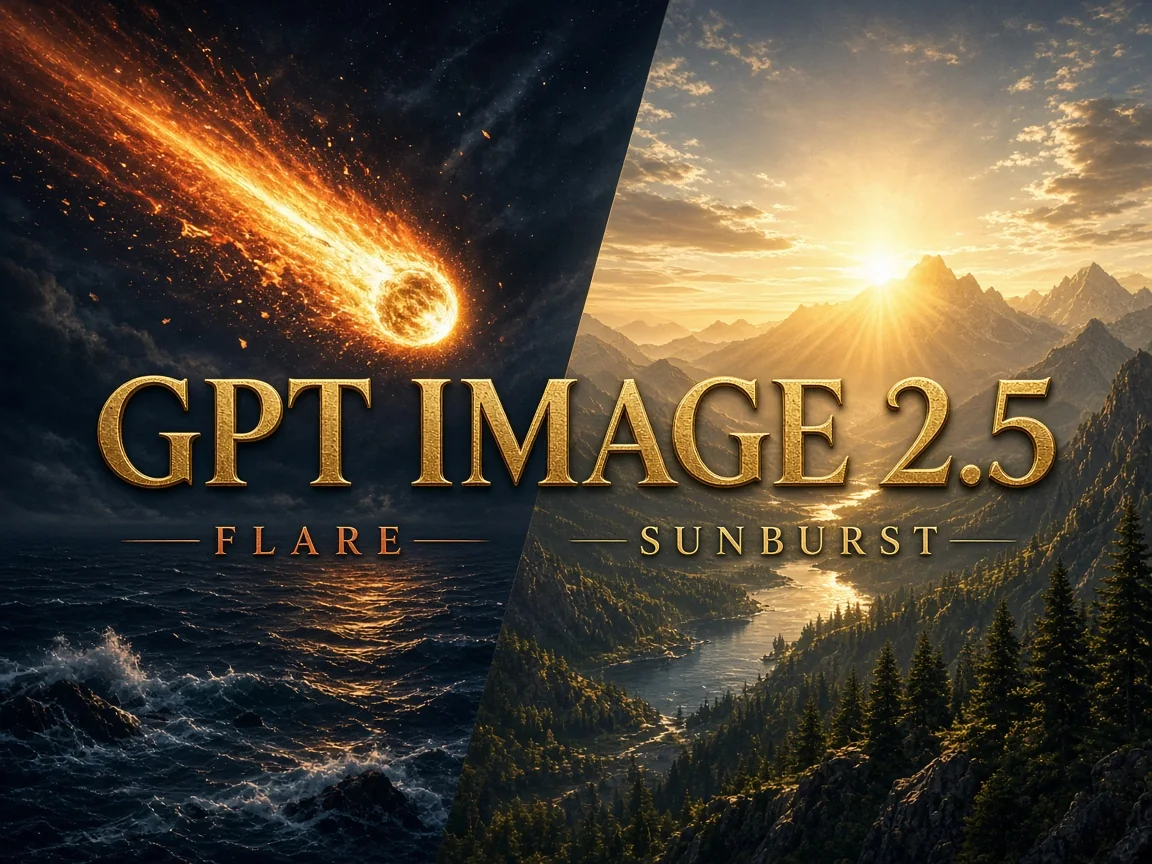
GPT Image 2.5 is an AI image generation and editing model built for sharper visual quality, stronger reference fidelity and more precise refinement. It renders natural lighting and textures, keeps recognizable subjects consistent across repeated edits and follows complex visual instructions more accurately.
It comes in two versions, Flare and Sunburst, and both handle text-to-image and image editing: Flare is tuned for speed, Sunburst for quality. In one workspace you can switch versions, pick auto or 12 aspect ratios and choose 1K, 2K or 4K output.
Key features of GPT Image 2.5
From lighting and texture to targeted edits, take more creative control.
01
Natural lighting and textures
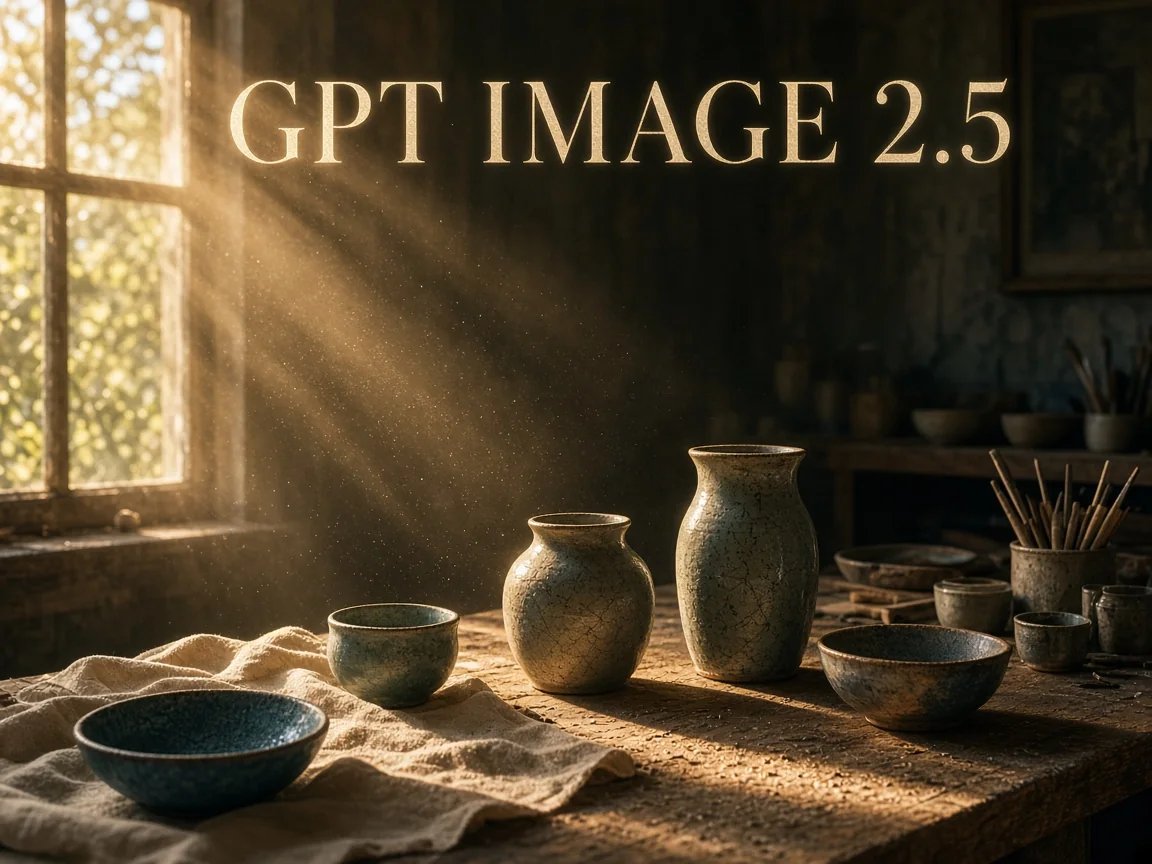
GPT Image 2.5 renders light direction, tonal transitions and material detail more naturally, so wood grain, glazed ceramics, fabric and skin feel real. Describe the light source, time of day and materials to get product shots and scenes that look photographed. It suits e-commerce hero images, food photography, interiors and brand mood images.
02
Faithful reference subjects
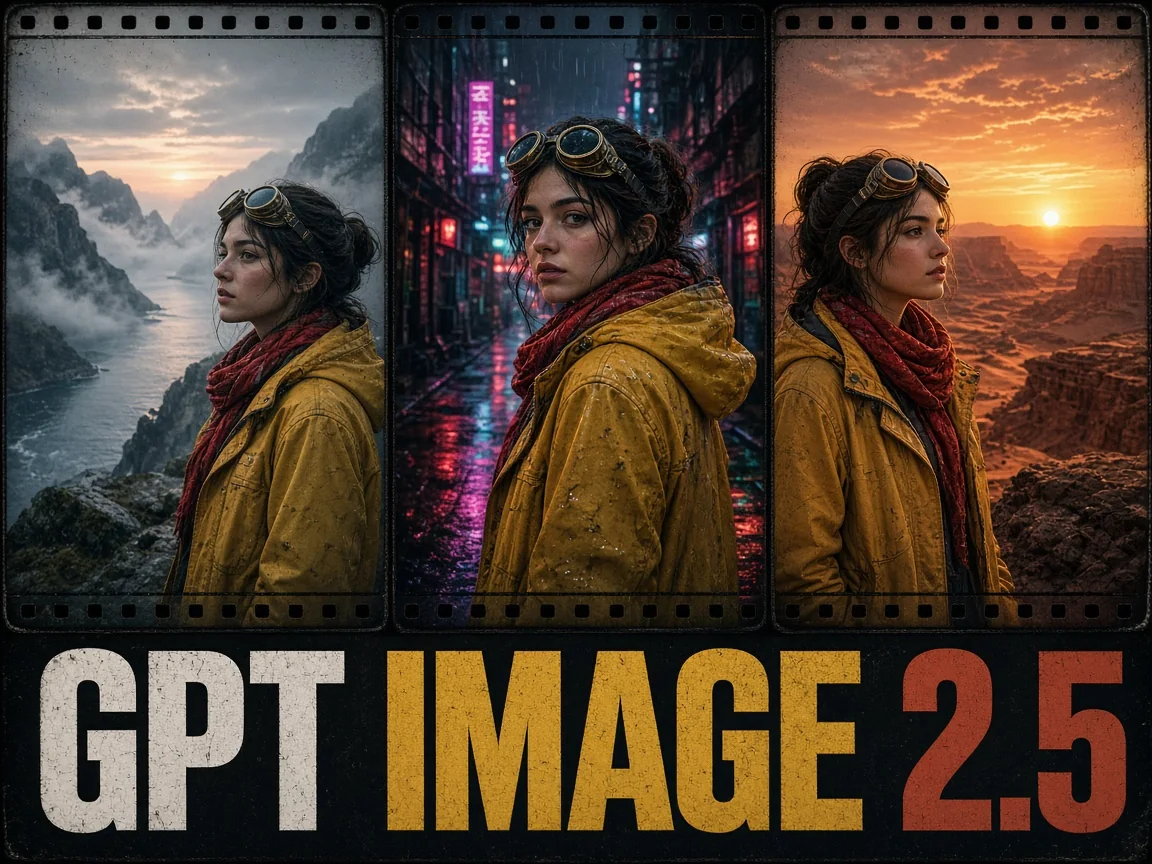
Upload a person, character or product and the model keeps facial features, outfit colors and product shapes more consistent while placing the same subject in a new scene. Image editing accepts up to 16 references, and mentions such as @image_1 tell the model what each image is for. Use it for character series, model reshoots and one product shown across many settings.
03
Edit only what you ask for
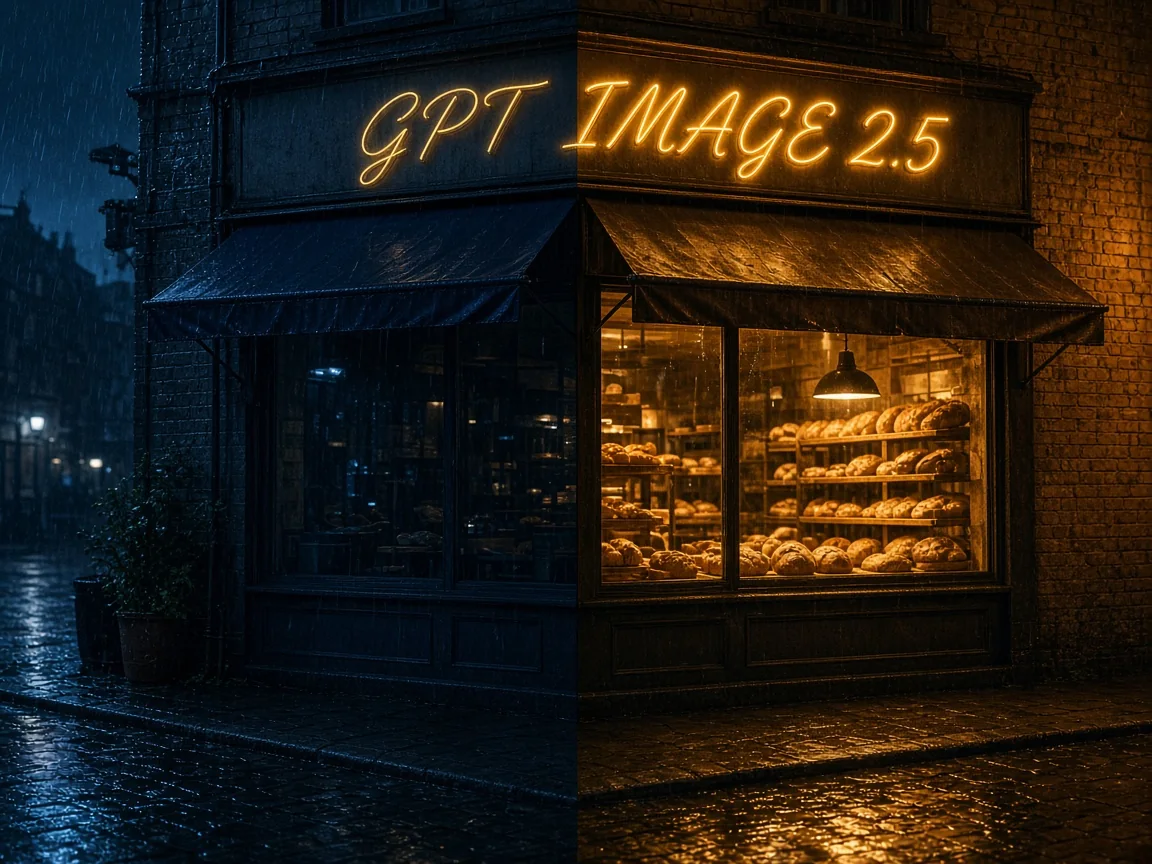
The model is better at targeted edits: swap a background, relight a scene, change one line of text or replace a single object while the rest of the composition, colors and details stay put. Write what should change and what should stay as separate instructions for more predictable results. Bring the edited image back as a reference to keep refining.
04
Transparent 1K assets
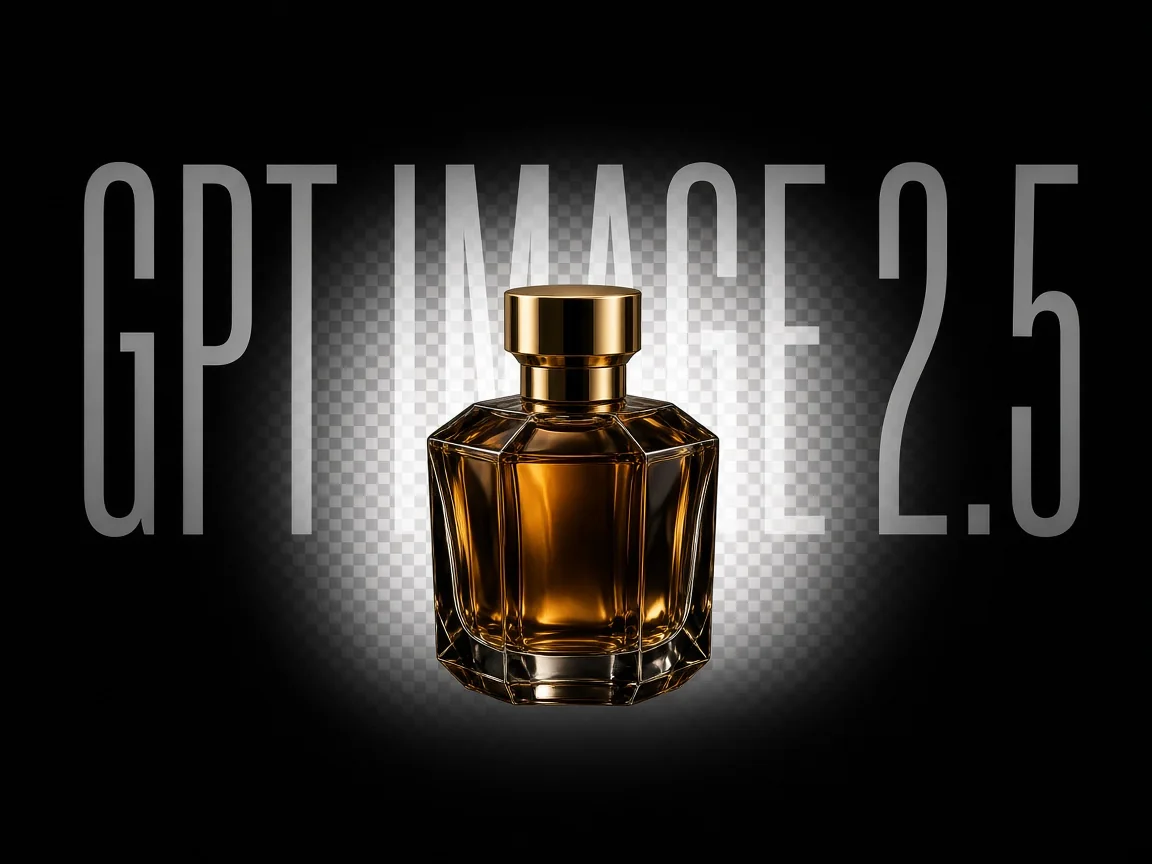
Set the resolution to 1K and the workspace shows a background option with transparent, opaque or auto. Choose transparent to create stickers, icons, product cut-outs and logo assets without manual masking. Describe an isolated subject with no backdrop for cleaner edges; the background option is not offered at 2K or 4K.
05
Two versions: Flare and Sunburst
Flare is the smaller model tuned for speed, with image quality comparable to GPT Image 2. Sunburst is the base model tuned for quality, with finer detail and texture. Both share the same settings, features and credits, and you switch with one click below the prompt. Pick Flare for everyday images and quick drafts, Sunburst for final visuals and detailed edits.
How to create and edit images with GPT Image 2.5
Create stunning AI images in GPT Image 2.5 in three simple steps:
1
Write a prompt or add references
To start from scratch, choose text to image and describe the subject, setting, lighting and style. To change an existing picture, switch to image editing, add up to 16 references and say what to change and what to keep.
2
Choose version, ratio and resolution
Pick Flare or Sunburst below the prompt, then choose an aspect ratio and 1K, 2K or 4K. For a transparent asset, select 1K and set the background to transparent.
3
Generate and keep refining
Select generate and your image appears in your history, ready to download or reuse as a reference for the next edit. The generate button shows the credit cost before you submit.
GPT Image 2.5 upgrades image quality, reference fidelity and targeted editing. Pick the version that fits the job.
Quality first
Sunburst
Positioning
The base model of the series, built for the best quality
Image quality
Richer lighting, texture and detail, above GPT Image 2
References and editing
Keeps reference subjects steadier and edits only what you ask
Aspect ratios
Auto plus 12 ratios, including 1K-only 27:16 and 9:8
Best for
Final visuals, commercial work and detailed edits
Speed first
Flare
Positioning
The smaller model of the series, tuned for speed
Image quality
Comparable to GPT Image 2
References and editing
Same settings and editing tools as Sunburst
Aspect ratios
Same as Sunburst
Best for
Everyday images, high-volume drafts and quick exploration
Previous generation
GPT Image 2
Positioning
The previous GPT Image model
Image quality
Clear and dependable, with solid text rendering
References and editing
Reference-guided editing and local changes
Aspect ratios
Auto plus 15 ratios, including wide 2:1, 3:1 and tall 9:21
Best for
Designs that need extra-wide or extra-tall formats
Flare and Sunburst cost the same, so you can run one prompt and set of references on both and keep the better result.
View credits by resolution
Version
Resolution
Credits / image
Flare, Sunburst
1K
15
Flare, Sunburst
2K
25
Flare, Sunburst
4K
40
GPT Image 2.5 FAQ
Answers about versions, transparent backgrounds, references and credits.
What is GPT Image 2.5?
GPT Image 2.5 is an AI image model that generates and edits pictures. It creates new images from text or references and makes precise changes to existing ones, with more natural lighting and steadier reference subjects. You can use it online in this workspace with nothing to install.
What is the difference between Flare and Sunburst?
Flare is tuned for speed and Sunburst for quality. Flare is the smaller model with quality comparable to GPT Image 2, while Sunburst is the base model with higher image quality. Both share the same settings, features and credits, so you can compare them on the same prompt.
Does GPT Image 2.5 support transparent backgrounds?
Yes, at 1K resolution. Set the resolution to 1K and choose transparent in the background option to get an asset you can layer directly; the background option is not available at 2K or 4K.
How many reference images can I add?
Image editing accepts up to 16 reference images in JPG, PNG or WEBP, each up to 30 MB. Mention them in your prompt as @image_1, @image_2 and so on to say whether each one supplies the subject, the scene or the style.
Which aspect ratios and resolutions are available?
You can use auto plus 12 ratios: 1:1, 3:2, 2:3, 4:3, 3:4, 16:9, 9:16, 21:9, 27:16, 16:27, 9:8 and 8:9, at 1K, 2K or 4K. The 27:16, 16:27, 9:8 and 8:9 ratios are 1K only, and the resolution switches to 1K automatically when you pick one.
How many credits does each image cost?
Each image costs 15 credits at 1K, 25 credits at 2K and 40 credits at 4K, the same for Flare and Sunburst. You can submit up to four tasks at once, and the generate button shows the total.
How long can a prompt be?
A prompt can be up to 20,000 characters, enough for a full creative brief. Start with the subject and purpose, then add composition, lighting, materials and style, and put any text that should appear in the image in quotation marks.
Can I keep editing a generated image?
Yes. Send the result from your history back to the workspace as a reference, switch to image editing and describe the next change, such as relighting only the background. State what to keep on every round to hold the subject steady.
Ready to create your next image with GPT Image 2.5?
 Nano Banana 2.1