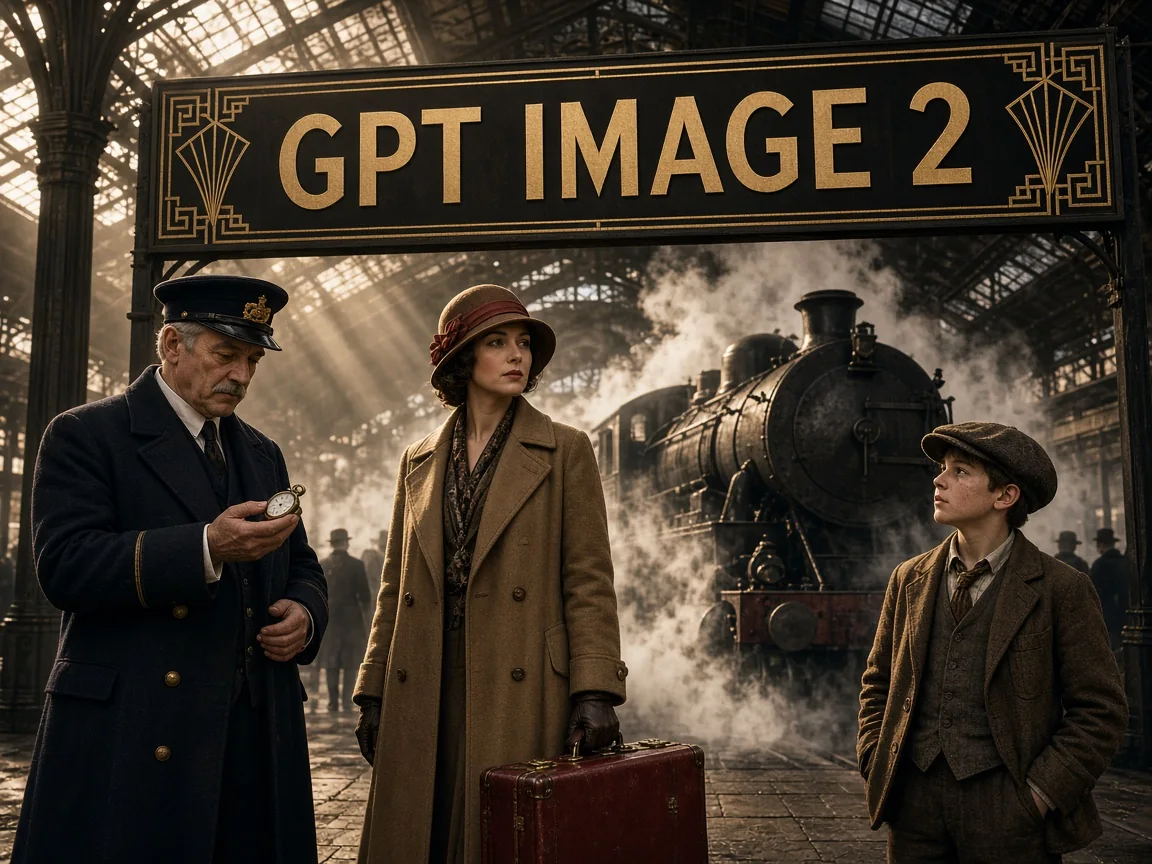
GPT Image 2 is an AI image generation and editing model known for clear, readable text inside images and accurate handling of multi-subject, layered prompts. Long phrases, punctuation and casing on posters, packaging, signs and infographics come out steadier, and maps, architecture and historical scenes gain believable detail.
It supports both text-to-image and image editing: start from a description, or upload up to 16 references to replace a background, recolor a product or adjust one area while the original lighting and texture stay intact. The workspace offers auto plus 15 aspect ratios, including wide 2:1 and 3:1 and tall 9:21, at 1K, 2K or 4K.
Key features of GPT Image 2
From in-image text to targeted recolors, make images ready for design and marketing.
01
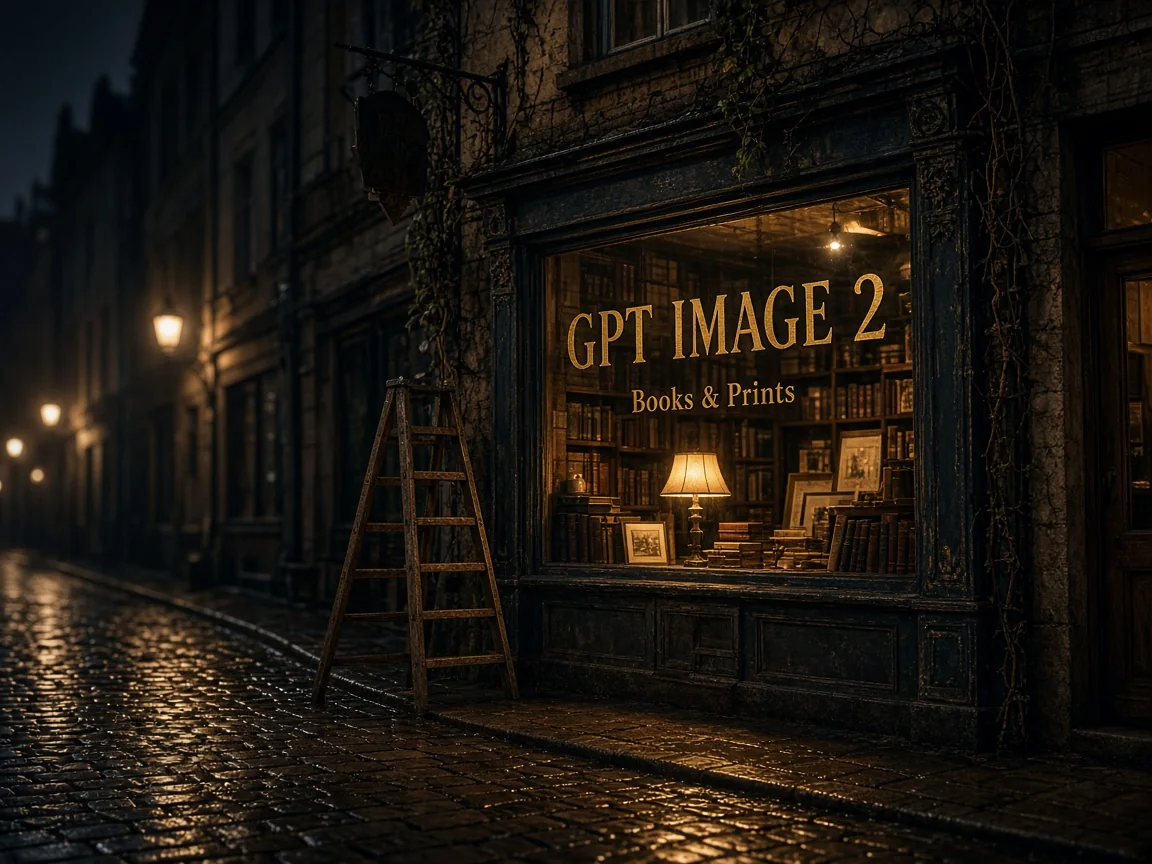
Crisp, readable text in images
The model renders long phrases, multi-word labels, punctuation and casing more accurately, so signs, poster headlines, packaging and interface text stay legible. Put the exact words in quotation marks and describe the lettering style and placement for typography that looks intentional. It suits storefront signs, event posters, product packaging and infographics.
02
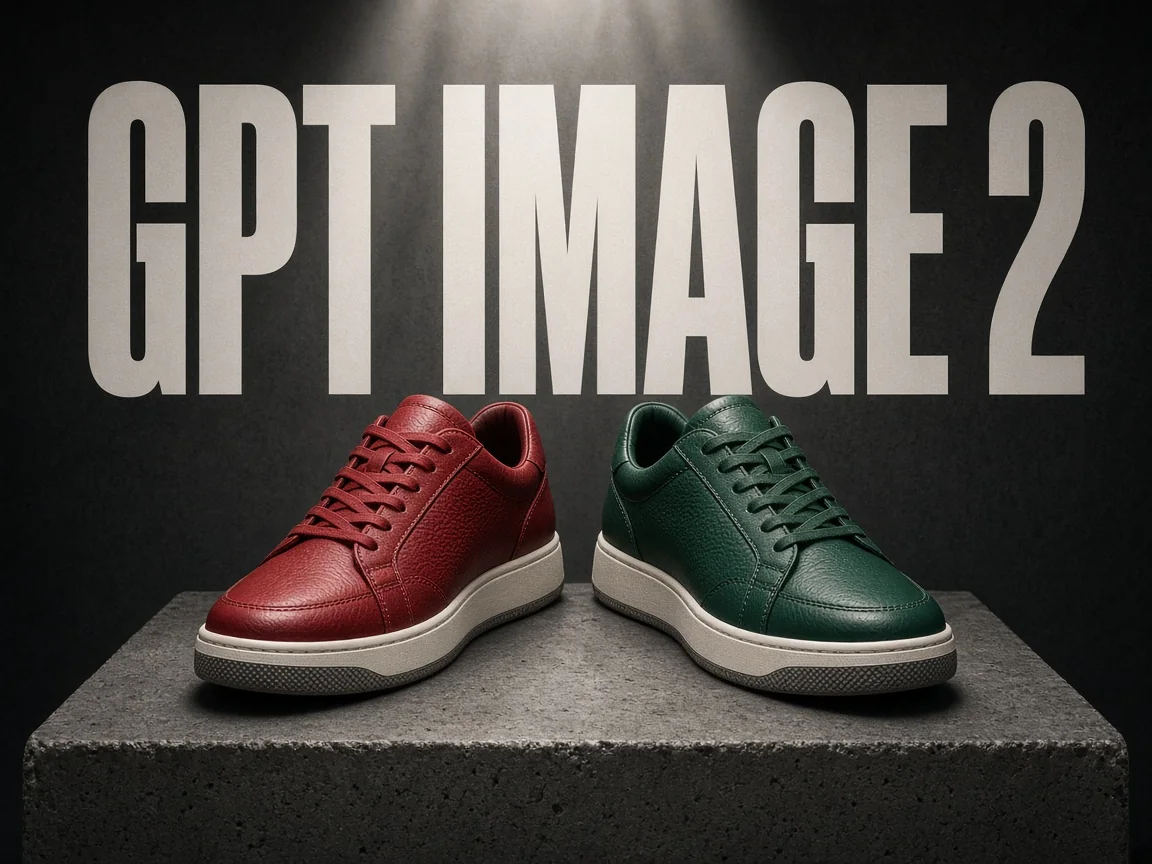
Edits that preserve the original
Upload a product or scene and the model changes only what you name, such as recoloring a shoe, replacing an object or updating the background, while the original lighting, shadows, textures and style hold. State what to change and what to keep for steadier results. Use it for e-commerce recolors, new product variants and A/B versions of one scene.
03
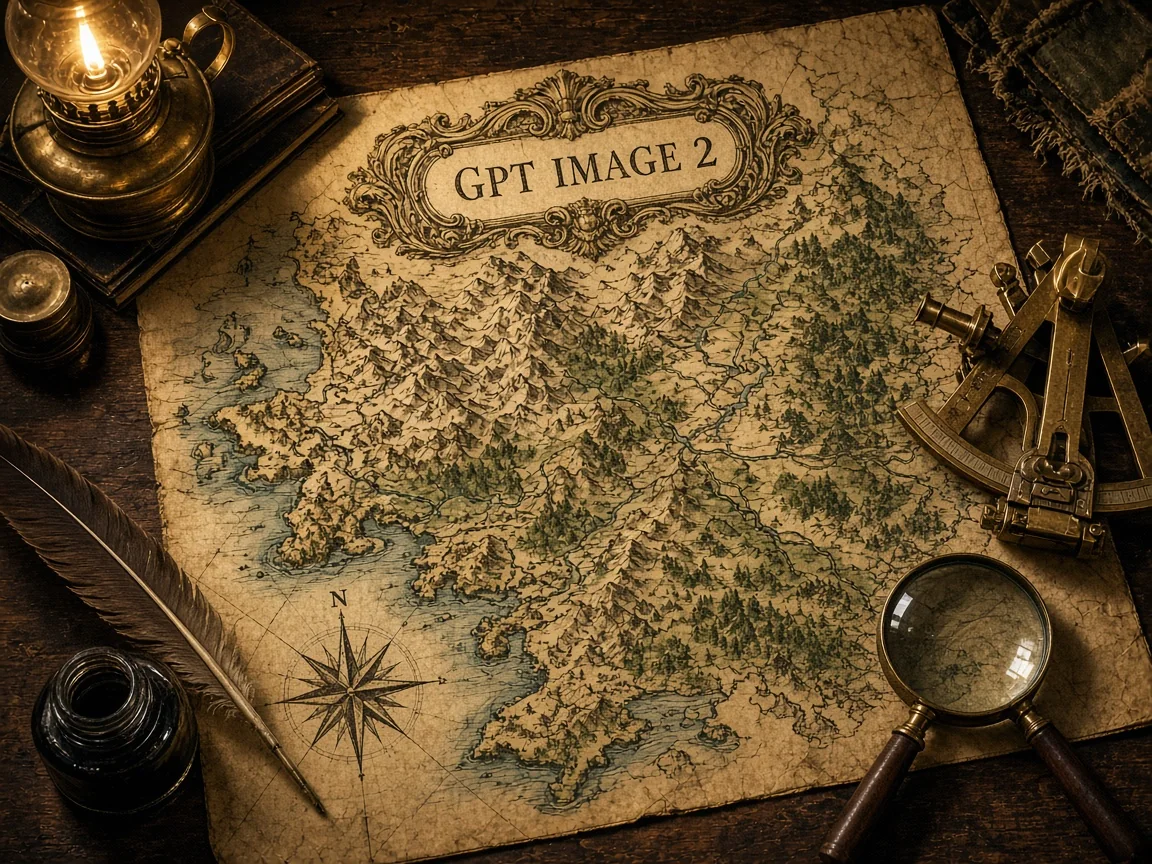
Grounded world knowledge
For maps, anatomy-style diagrams, historical reconstructions and architectural scenes that need structure and factual coherence, the model better understands how objects relate, so details feel credible. Describe the era, place and purpose and the result reads like reference material rather than a random collage. It fits educational illustrations, explainers, travel promotion and concept design.
04
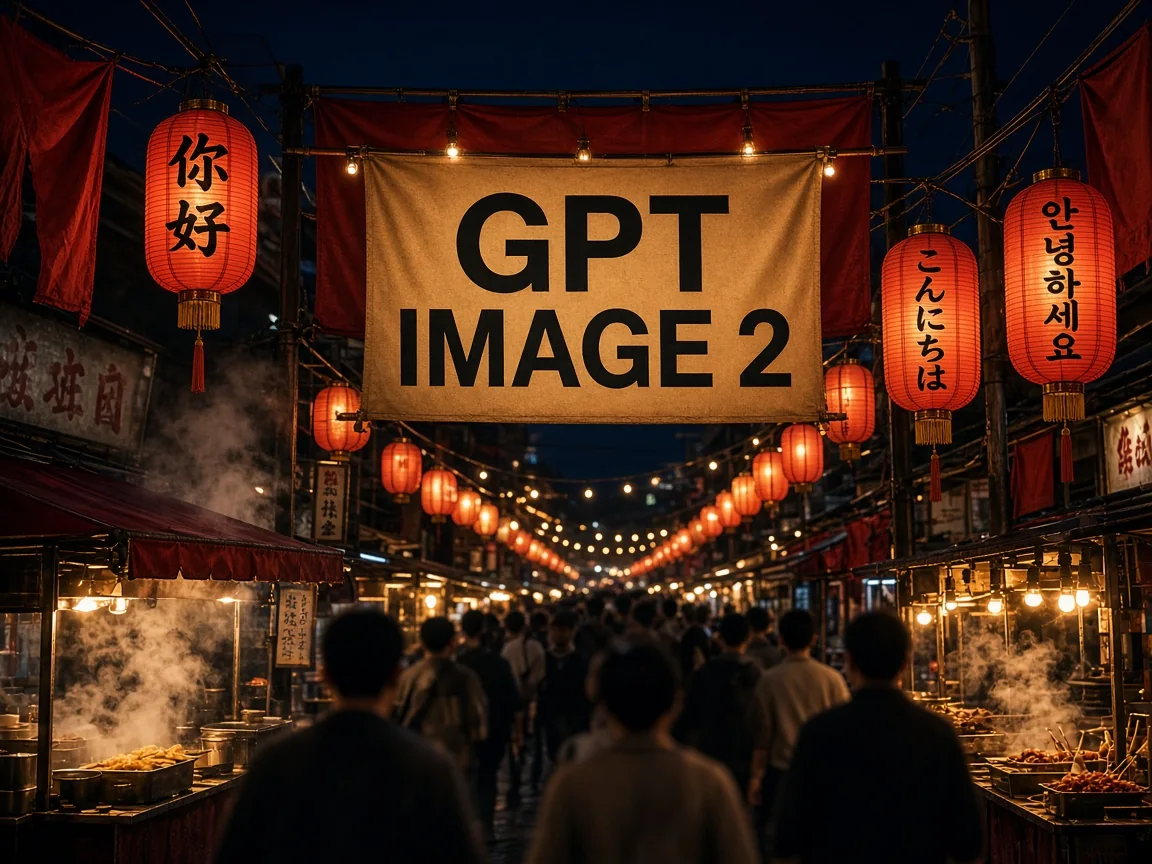
Multilingual lettering
Non-Latin text rendering is stronger, so one image can carry Chinese, Japanese, Korean and other languages for localized ads, international packaging and multi-market campaigns. Write each phrase in its original script in the prompt and say where it appears, such as on lanterns, banners or labels, for more accurate lettering.
05
Multi-subject scenes and layouts
It follows long instructions with several people, layered scenes and explicit positions more closely, placing objects accurately and keeping layouts under control. Describe each subject's look, action and position from foreground to background and complex compositions come together in one pass. Use it for cinematic posters, ensemble scenes, storyboard concepts and brand key visuals.
How to create and edit images with GPT Image 2
Create stunning AI images in GPT Image 2 in three simple steps:
1
Write a prompt or add references
To start from scratch, choose text to image and describe the subject, setting, wording and style. To change an existing picture, switch to image editing, add up to 16 references and say what to change and what to keep.
2
Choose ratio and resolution
Pick auto or one of 15 aspect ratios, then choose 1K, 2K or 4K. For a transparent asset, select 1K and set the background to transparent.
3
Generate and keep refining
Select generate and your image appears in your history, ready to download or reuse as a reference for the next edit. The generate button shows the credit cost before you submit.
Both models cost the same per image, so you can try one prompt on each.
View credits by resolution
Model
Resolution
Credits / image
GPT Image 2
1K
15
GPT Image 2
2K
25
GPT Image 2
4K
40
GPT Image 2 FAQ
Answers about in-image text, aspect ratios, references and credits.
What is GPT Image 2?
GPT Image 2 is an AI model that generates and edits images. It creates new pictures from text or references and makes targeted changes to existing ones, and it is especially good at clear text inside images. You can use it online in this workspace with nothing to install.
Can the model write text in other languages?
Yes. It renders text in Chinese, Japanese, Korean and many other languages inside the image. Put the exact wording in quotation marks and describe where it sits in the scene for more accurate lettering.
How is GPT Image 2 different from GPT Image 2.5?
GPT Image 2.5 is the newer model, with better lighting, texture and reference consistency, while GPT Image 2 offers more aspect ratios, including 2:1, 3:1 and 9:21, and equally clear in-image text. Both cost the same per image, so pick the one that fits the job.
Which aspect ratios and resolutions are available?
You can use auto plus 15 ratios: 1:1, 3:2, 2:3, 4:3, 3:4, 5:4, 4:5, 16:9, 9:16, 2:1, 1:2, 3:1, 1:3, 21:9 and 9:21, at 1K, 2K or 4K. The 3:1, 1:3 and 9:21 ratios are 1K only, 5:4 and 4:5 skip 2K, and the workspace switches to an available resolution automatically.
Does it support transparent backgrounds?
Yes, at 1K resolution only. Set the resolution to 1K and choose transparent in the background option to get an asset you can layer directly; the background option is not offered at 2K or 4K.
How many reference images can I add?
Image editing accepts up to 16 reference images in JPG, PNG or WEBP, each up to 30 MB. Mention them in your prompt as @image_1, @image_2 and so on to say whether each one supplies the subject, the scene or the style.
How many credits does each image cost?
Each image costs 15 credits at 1K, 25 credits at 2K and 40 credits at 4K. You can submit up to four tasks at once, and the generate button shows the total.
How long can a prompt be?
A prompt can be up to 20,000 characters, enough for a full creative brief. Start with the subject and purpose, then add composition, lighting, materials and style, and put any text that should appear in the image in quotation marks.
 Nano Banana 2.1